SAS Grid
Accessing SAS Studio
Open a web browser and go to: https://dssasgrid.kennesaw.edu/SASStudio/
(Note: you MUST type in https and follow the case on “SASStudio”, as “sasstudio” will NOT get you to the login screen)
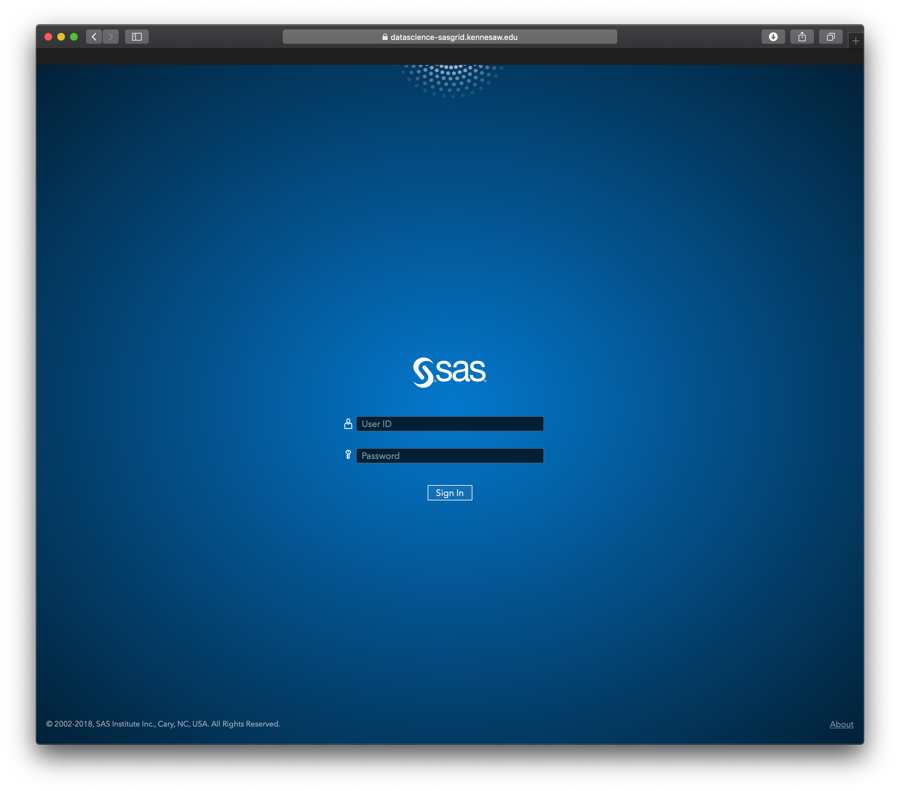
On this screen, you can log in with your NetID username and password. After logging in, you will be brought to the main SAS programming interface.
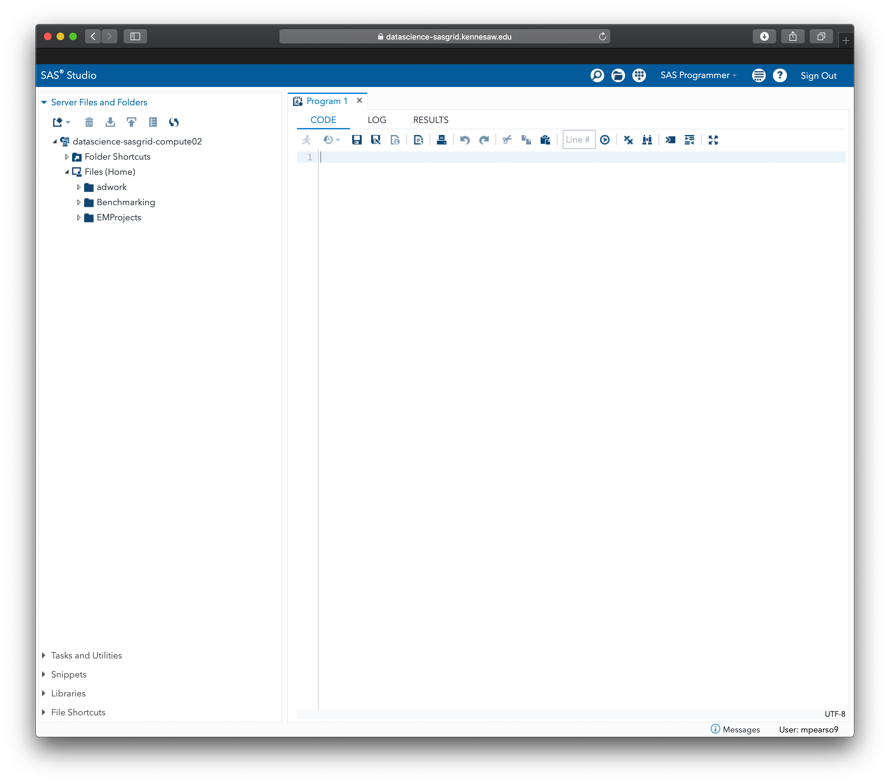
This is the main window for interfacing to the SAS Grid Server. To upload data, use the folders tab on the left hand side of the window. Hovering over the icons will give you a description of the purpose of that button.
SAS coding and programming will take place on the right hand window. This is also where results will be shown and where output can be downloaded from the server.
For a full manual of the SAS Studio interface, please see the manual available by clicking the question mark icon on the top right of the window and selecting “SAS Studio Help”.
Adding a Metadata/Shared Library in SAS Studio
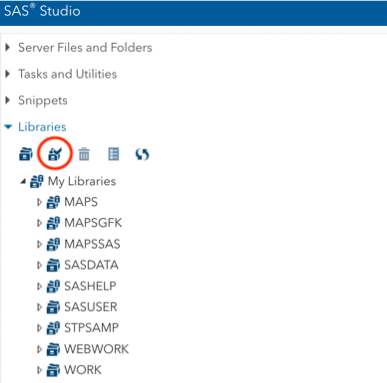
If you are enrolled in a course that has a class data set, you will need to add those data sets to your SAS Studio environment. To do this, expand the “libraries” section of the left-hand window of SAS Studio.
Next, click on the second file folder icon, which is titled “Assign Metadata Libraries” if you hover over the icon with the mouse.
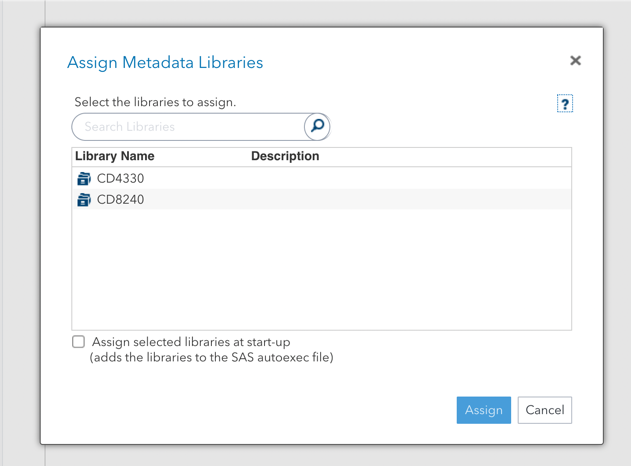
This will bring up a window listing all Metadata libraries in the SAS system. Choose the correct library for your class, click the “assign upon login” check box if you wish to have this library automatically assigned upon login, and click assign.
Password encoding
It's generally a good idea to protect passwords instead of typing them in plaintext in your code. For encoding passwords, there is a snippet of SAS code in SAS Studio. Log in, click Snippets on the left, then expand My Snippets. The Password Encoding file contains the code. Copy and paste into a SAS program, entering the password where appropriate, run the code and copy the output to the password field of your SAS code. The format will be something like {SAS004}B7312F6AAC2D285FDDBB3F4699F4680CC0D42818124D2982. You can use this string anywhere in place of the plaintext password. Make sure you include the {SAS004} at the start of the string.
Make sure you close the file without saving to delete your plaintext password.
Here is the SAS code itself:
proc pwencode in="your-password" method=sas004; run;
Connect to SAS Viya/CAS
Create an .authinfo file
You must set up an .authinfo file for authentication. This will tell SAS the name of the server to connect to, as well as what credentials to use.
In order to keep things secure, first encode your netID password in SAS Studio as documented above.
You can use Jupyterhub's built-in terminal to access a shell where you can create or change your authinfo file. Note that you may already have an example file with a dummy password set.
- Log into https://jupyterhub.kennesaw.edu/
- Click Terminal in the bottom row of the launcher
- At the prompt, type
touch .authinfo. If the file doesn't exist, it will be created. - Edit the file by typing
nano .authinfo. - You may see contents in the file already, but if you do not, it should have one line with information on the Viya CAS controller.
- Make sure the information matches the following:
host dssasviyaprdctl02.kennesaw.edu port 5570 user <your-netID> password <your-encoded-password>- Example:
host dssasviyaprdctl02.kennesaw.edu port 5570 user cdow1 password {SAS002}1234567890ABCDEF1234567890ABCDEF- Press Ctrl+O followed by Enter to save the file
- Press Ctrl+X to close the file
Now you can log into https://dssasgrid.kennesaw.edu/SASStudio/ to test the connection.
SAS Code to connect
The following is a code snippet you can use to test the CAS libname. Note that the server name is dssasviyaprdctl02.kennesaw.edu and the port is 5570 for other CAS code snippets in SAS Studio.
option casport=5570 cashost='dssasviyaprdctl02.kennesaw.edu';
cas casauto sessopts=(caslib=casuser);
libname mycas cas;

proc casutil;
    load data=sashelp.cars casout="cars";
quit;

data mycas.bopc;
   set mycas.cars;
   where make in ("Buick", "Oldsmobile", "Pontiac", "Cadillac");
   wthp_ratio = round((weight / horsepower), .0001);
   drop msrp invoice;
run;

proc print data=mycas.bopc(obs=5);
run;

proc treesplit data=mycas.bopc;
   model mpg_highway = cylinders enginesize wheelbase length;
   class type drivetrain;
run;