RStudio
Accessing RStudio
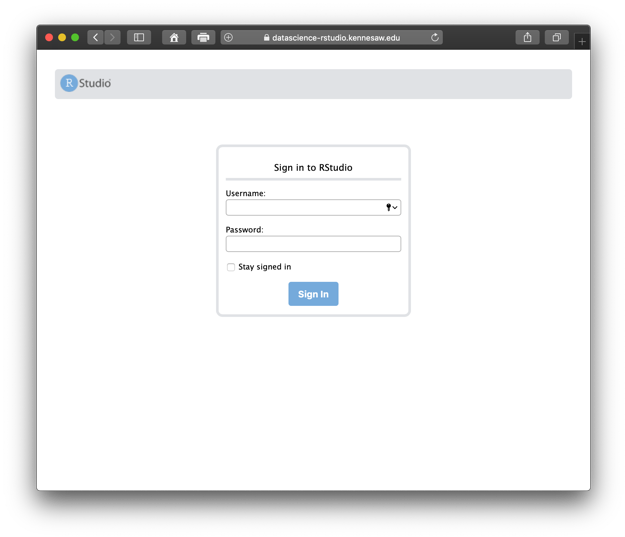
Open a web browser and navigate to https://rstudio.kennesaw.edu/. Log in with your netID and password.
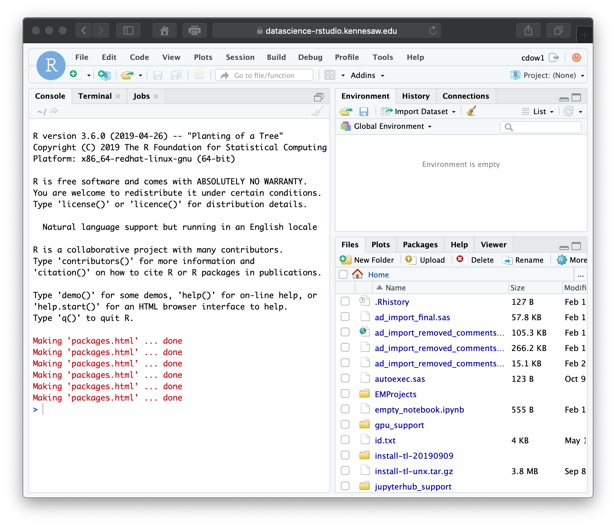
On first log in, you will see an R interpreter on the left and environment panes on the right. To create a new file, click the New File button in the upper left.
Packages are installed on your own user account, but if you need something with an OS dependency (if your install throws an error), email service@kennesaw.edu with the name of the package you want to install and the error message you receive.
R-SWAT (SAS Viya streaming)
Preparations
Make sure your .authinfo file is set up. If you already set it up for Jupyterhub, it will work the same way for RStudio. See the section on preparing the .authinfo file for how to set it up.
host dssasviyaprdctl02.kennesaw.edu port 5571 user <username> password <password>
Using R-SWAT
library(swat)
conn <- swat::CAS('dssasviyaprdctl02.kennesaw.edu', 5571)

# Load iris dataset into CAS
iris.ct <- as.casTable(conn, iris)

# Get some basic statistics
min(iris.ct$Sepal.Length)
max(iris.ct$Sepal.Length)
mean(iris.ct$Sepal.Length)

# Call CAS actions on the table
out <- cas.simple.summary(iris.ct)
out

out$Summary[c('Column', 'Min', 'Max')]

# Close the connection to Viya
cas.terminate(conn)
For more information on R-SWAT, check out the github.